Scenario
You’ve configured a Failover Cluster using Server 2008 R2, and now you want to install SQL Server 2008 R2.
Solution
Changes
A few changes were made to the simple Failover Cluster that was previously configured:
- Several LUNs were added to the FreeNAS VM so separate disks could be used for each function:

- 3 x Network Interface Cards (NICs) were configured on each node, each on a different subnet:
- LAN: 10.10.10.0/24
- SAN: 10.10.20.0/24
- Heartbeat: 10.10.30.0/24
- The FreeNAS interface was configured on the SAN subnet (10.10.20.220).

This time round, the Failover Cluster Validation Report didn’t have a single warning; all green ticks 😉
Microsoft Distributed Transaction Coordinator (MSDTC)
We need to set up the MSDTC to support distributed transactions. Do the following on all nodes:
- Navigate to Server Manager > Roles > Add Roles.
- Select Application Server.
- Select Incoming and Outgoing Remote Transactions:

- Click Next, Finish.
- Navigate to Failover Cluster Manager > [Clustername]
- Right-click Services and applications > Configure a Service or Application:

- Select Distributed Transaction Coordinator (DTC):

- Choose a name and IP address for the DTC service:

- Select a disk:

- Confirm settings and click Next:

- Once completed, view the report or click Finish:

- If successful, you will see the DTC service under Services and applications:


SQL Server Failover Cluster Installation
- From the setup menu, select Installation > New SQL Server failover cluster installation:

- Click OK after the first set of checks:

- Enter a product key or leave it on Evaluation if you’re in a lab like me:

- Accept the license terms:

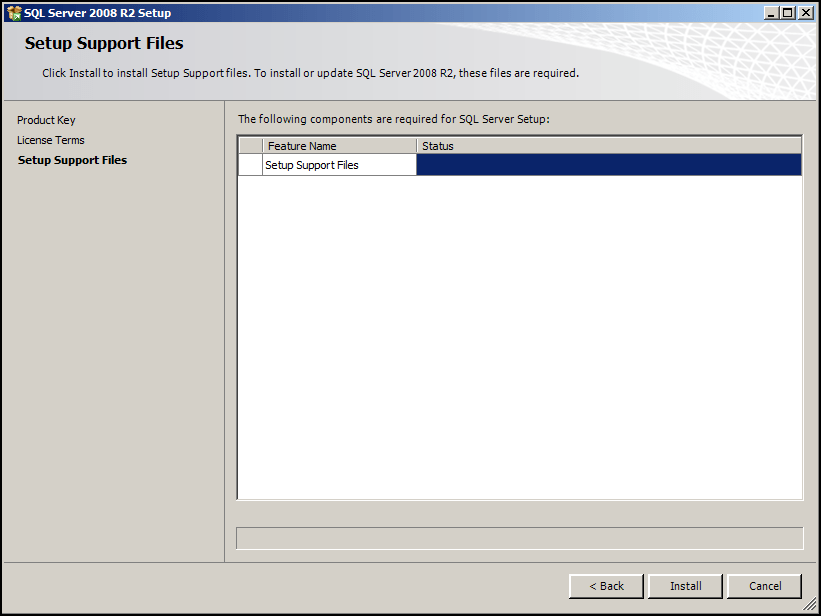
- Click Install to start the SQL Server setup:

- Click Next after more checks have completed:

- Choose which components you want to install. I’m keeping it simple here:

- Choose a SQL Server Network and Instance Name:

- Review the Disk Usage Summary:

- Choose a Resource Group Name:

- Choose all of the disks to be used:

- Choose an IP Address:

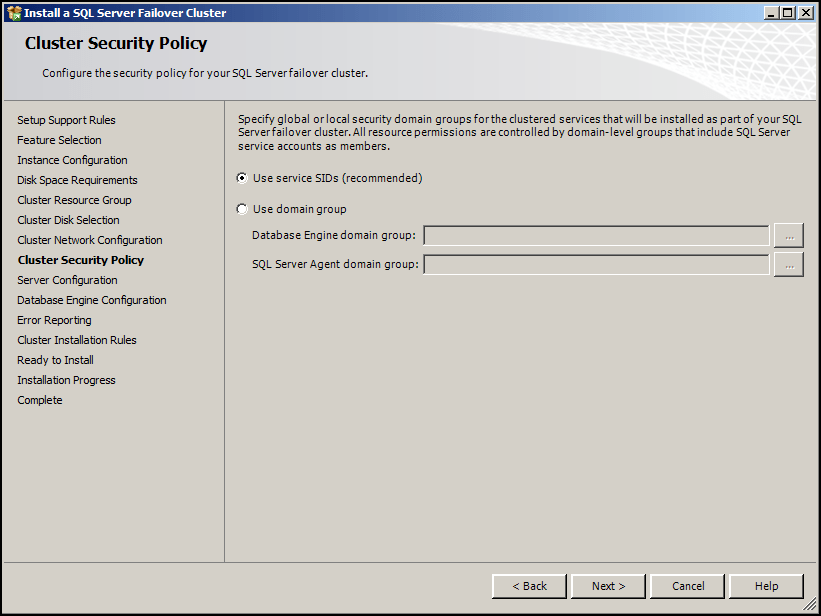
- Select the Cluster Security Policy:

- Enter the user accounts for each service. It’s recommended to create a separate Domain Account for each service:

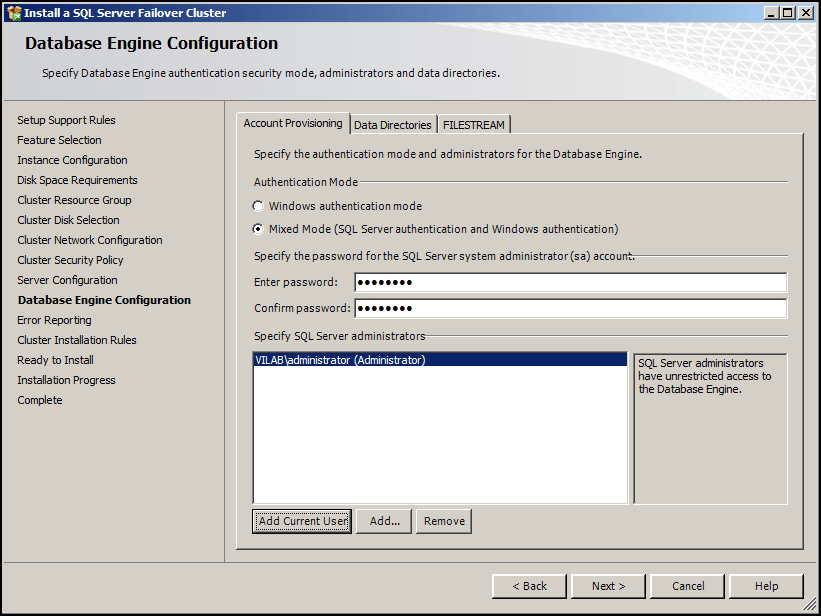
- Select the Authentication Mode and specify the SQL Server administrators:

- Map the directories to the separate disks you set up earlier:

- Select your Error Reporting preference:

- More checks please landlord…oh go on then!

- Review your selections and click Install:

- Setup complete:

- All being well, your new SQL Instance should appear under Services and applications:







Although there are quite a few steps here, relax, as it’s easier adding a node to a SQL Server 2008 R2 Failover Cluster.
hi adam,
Great post…
this is what i was searching for ….
thanks
Pranay
Hi adam,
there is a question in my mind, in point 16 you have mentioned about disk configuration & user database directory & system database directory was stored in S drive.
is S drive a shared drive present in one of the node of the cluster or is it the volume created in FreeNAS.
and where we are using the FreeNAS volume ?
according to my understanding there should be a shared drive in the nodes which will hold the DB.
Hi Pranay
The answer to your question is ‘both’. I first created all the volumes in FreeNAS, then connected them to both nodes via iSCSI. Only one node at a time can have write access to the volumes.
See my previous post and follow the links to see how I set everything up: http://www.virtuallyimpossible.co.uk/configure-a-failover-cluster-using-server-2008-r2/
Let me know if you get stuck and I’ll be happy to help 🙂
Adam
is all the disks mention in screenshot 1 is CSV disks…